
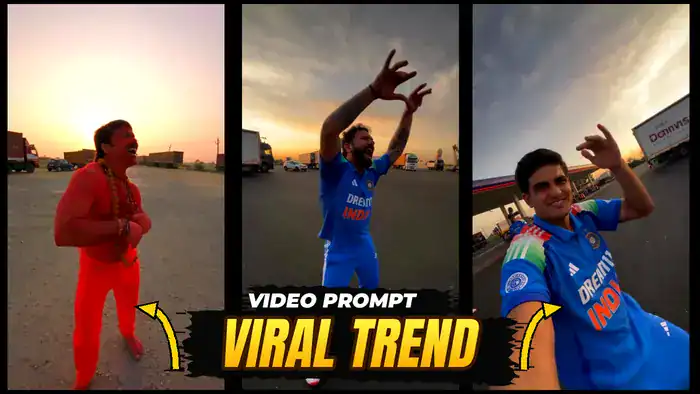
This Viral Trend AI Video is all over Instagram right now. In the clip, a man dances at a highway petrol pump at sunset, his friend takes selfies, and then a third friend steps out of a parked car. Now people are recreating it with their own faces. However, you don’t need any editing skills. Instead, you just upload the reference video and 3 photos to Google Flow, paste the prompt, and the AI makes the whole video for you.
So, in this post you will get the reference video, the full prompt, and also the simple step-by-step method to make it yourself.
Download the Reference Video
First, watch the original clip. Google Flow copies every move and camera shot from this video.
Next, tap the download button below and save this video to your phone. You will upload it to Google Flow in the next step.
Viral Trend AI Video Prompt
Now copy this prompt. Because it locks the dance and camera moves, your Viral Trend AI Video looks just like the original, but with your 3 people.
MOTION LOCK (from reference video):
Copy every movement from the reference video exactly — the same dance steps, arm and body movements, hand gestures, walking path, timing and rhythm. Copy the exact camera path: same handheld shake, same pans, same whip-pans, same 180° selfie rotations, same framing and cut points. Do not add, remove or change any movement. Use the reference video ONLY for motion, camera and timing — do NOT copy any face, clothing or texture from it.
CHARACTER REPLACEMENT (from reference images):
– Reference image 1 = THE DANCER. Replace the dancing man in the video with this person. He appears ONLY in the opening dance, performing the exact same dance moves. He never holds the phone and never appears in any selfie shot.
– Reference image 2 = THE CAMERA OPERATOR. He holds the phone for the entire video. Every time the camera turns around into selfie view (the first selfie turn AND the final selfie), the face shown MUST be this person, with the same expressions and movements as in the video.
– Reference image 3 = THE PASSENGER. Replace the man who steps out of the parked car with this person. He gets out and walks toward the camera exactly as in the video, and stands in the background during the final selfie. He never holds the phone.
How to Make This Viral Trend AI Video in Google Flow
Once you have the video and the prompt, follow these steps. As a result, you will get the same Viral Trend AI Video with your own faces.
- Open Google Flow: First, tap the “Open Google Flow” button below and sign in with your Google account.
- Upload the reference video: Next, upload the reference video you downloaded above.
- Upload your 3 photos: Then, upload 3 photos. Photo 1 is the dancer, photo 2 is the person holding the phone (selfie face), and photo 3 is the friend who steps out of the car.
- Paste the prompt: After that, paste the prompt you copied above.
- Tag your photos: Inside the prompt, you can also tag each photo. Just type @ and select the photo. For example, tag photo 1 next to “Reference image 1”, photo 2 next to “Reference image 2”, and photo 3 next to “Reference image 3”.
- Generate: Finally, hit Generate, wait a few minutes, and download your video.
Tips for a Better Result
Also, keep these small tips in mind. In short, better photos give you a better Viral Trend AI Video.
- Use clear, front-facing photos with good light.
- Avoid sunglasses, caps or group photos. One face per photo works best.
- So, choose half-body photos if you can. The AI copies clothes and body shape better.
- Also, keep the photo order right. If the faces come out mixed up, check your @ tags and generate again.
That’s it! Now your Viral Trend AI Video is ready to post as a Reel. Finally, if you like trends like this, also try the Casa Tupka AI Video trend and the Toyota Car Jump AI Video.