
Are you looking for a free unlimited AI video generator that actually works? You are not alone. Every day, thousands of creators try to turn a simple idea into a video. However, many of them get stuck with credit limits, watermarks, login walls, or clips that simply refuse to generate.
In this guide, we will look at VEOAIFree, a browser-based platform built around Google Veo technology. It offers more than video: the menu lists over 40 free AI tools for images, chat, and learning. First, we will see what it offers. Then we will fix the most common problems creators face while generating AI videos, step by step.
What Is a Free Unlimited AI Video Generator?
A free unlimited AI video generator turns your text prompt into a short video clip. You describe a scene, and the AI creates the motion, lighting, and camera movement for you. Then you download the clip and use it in your Shorts, Reels, or long videos.
Most premium tools charge per clip or lock you out after a few tries. A free unlimited AI video generator promises the opposite. VEOAIFree presents itself in exactly this way: no sign-up, no watermark, and no generation limits, with support for Google Veo 2.0 and 3.0 models.
Because it is a third-party platform, features can change at any time. So always check the latest details on the website before you plan a full project around it.
What Does VEOAIFree Offer?
Before you use any free unlimited AI video generator, you should know what is inside it. Here is what the platform offers right now.
Free Text-to-Video AI Generation
Type your idea in plain words and click the generate button. You do not need editing skills or any software installation. Everything runs in your browser.
Advanced Editor in the Free AI Video Generator
The Advanced Editor lets you create up to four variations of the same idea. You can also choose your aspect ratio and pick the Google Veo version you want. This is very useful because AI video is rarely perfect on the first try.
Built-in Prompt Enhancer
The prompt generator turns a short idea into a detailed prompt. As a result, beginners get better clips with less effort.
Landscape and Portrait Videos
You can create wide videos for YouTube or vertical videos for Shorts and Reels. The generator also lets you choose 720p or 1080p quality, and the site says audio is included. Therefore, one tool covers both formats.
More Free AI Video Generator Tools on the Site
Apart from the main tool, the website lists an Image to Video tool, a Seedance 2.0 video generator, a 3D AI video generator, and a Grok AI video generator. It also has separate pages for YouTube Shorts, Facebook Reels, and Instagram videos. So you can test different tools without leaving the site. And there is more than video, as you will see in the next section.
More Free AI Tools Beyond the Free Unlimited AI Video Generator
Here is the part many creators miss. VEOAIFree is not only a video tool. Its menu lists more than 40 free AI tools across video, images, chat, and learning. Let us go through the most useful ones for creators.
Free AI Image Tools
The image side of the site is strong. The Nano Banana image generator creates up to four variations from one prompt, and the site says it needs no sign-up. The site also lists tools for upscaling, unblurring, and restoring old photos.
- Image to Prompt: Upload an image and get a detailed prompt for Gemini, Midjourney, Stable Diffusion, or Flux. The Image to Prompt tool also supports Hindi and 11 other languages.
- AI Upscale and Unblur: Improve a low-quality thumbnail or an old photo before you use it. Here is the AI upscale tool.
- AI Headshot and Selfie tools: Both are listed in the image menu, and they are useful for profile pictures.
- Photo style converters: Turn a picture into a sketch, cartoon, watercolor, or line drawing.
You can browse the full list on the all image generators page.
More Video Tools: Image to Video and Video Transcriber
Apart from text-to-video, you can animate a still picture with the Image to Video tool. The Video Transcriber converts an uploaded video (MP4, MOV, AVI, or WEBM) into text, and the page says it can also create a prompt from a video. Use it only on your own videos or on content you have permission to use.
There are also ready-made generators for YouTube Shorts, Facebook Reels, Instagram videos, ads, music videos, AI avatars, AI influencers, and training videos. You can see them all on the all video generators page.
Free AI Chat Models (Read This First)
The site menu also lists chat pages for Claude, ChatGPT, Grok, Gemini, Kimi K3, GLM, and Nemotron 3 Ultra. The site labels them as free and unlimited.
However, these are third-party pages, and we cannot verify which model runs behind each one. So use them for simple tasks like title ideas or prompt drafts. Never type passwords, client data, or private information into them.
Learning and Creator Utility Tools
There are some smaller tools that creators may enjoy. They include an animated timeline video generator, a micro-explainer video maker that works from bullet points, a diagram flashcard generator, a quick product mockup creator, and a language tutor that builds scenes from sentences. Test them with small ideas first, and keep only the ones that fit your niche.
How to Use This Free Unlimited AI Video Generator
Using the tool is simple. Just follow these three steps.
- Open the website and type your video idea in the prompt box. Keep it clear and specific.
- Click the Generate a Video button. Use the Advanced Editor if you want four variations or a specific aspect ratio.
- Preview the result, then download it and use it on YouTube, Instagram, or any other platform.
If you want to polish the clip afterwards, you can edit it on your phone with CapCut Pro for Android. Add captions, music, and a voiceover, and your AI clip will look far more professional.
Why Creators Struggle to Generate AI Videos (And How to Fix It)
Here is the honest truth. Even with a good free unlimited AI video generator, many creators fail to get a usable video. The reason is usually not the tool. It is a small mistake in the process. Let us fix the most common problems one by one.
Problem 1: Video Is Stuck or Not Generating
Sometimes the loading bar just keeps spinning. This often happens because of heavy traffic or a weak internet connection. Refresh the page, wait a minute, and try again. Also, turn off your VPN and ad blocker, or switch to another browser. Trying during off-peak hours can help as well.
Problem 2: Generation Fails or Shows an Error
Long and complicated prompts often fail. Prompts with celebrity names, brand names, or violent words can also get blocked by safety filters. So keep your prompt to one simple scene. Remove names and sensitive words, and try again.
Problem 3: The Free AI Video Looks Random or Ugly
Vague prompts create vague videos. If you write only “a man walking”, the AI has to guess everything else. Instead, describe the subject, the place, the light, and the camera movement. We share a simple formula in the next section.
Problem 4: Wrong Size for Shorts and Reels
Many creators generate a wide video and then crop it. This destroys the framing. Choose the portrait ratio in the Advanced Editor before you generate, so the clip fits Shorts and Reels from the start.
Problem 5: Text and Faces Look Broken
AI video still struggles with written text and complex faces. Do not ask for text inside the scene. Instead, generate a clean clip and add the text later in your editor.
Problem 6: Download Not Working or Low Quality
If the download does not start, try another browser or check your device storage. You can also long-press or right-click the video to save it. If the quality looks soft, generate a fresh variation instead of stretching the same clip.
Problem 7: Why an Unlimited AI Video Maker Matters
This is the main reason creators search for a free unlimited AI video generator in the first place. Many official tools ask for a paid plan or credits after a few clips. A free alternative removes that pressure, so you can experiment without fear.
Problem 8: A Share-to-Unlock Message Appears
Many VEOAIFree pages show a “Help us by sharing” banner. The site also has a lock screen that says sharing on one social platform unlocks unlimited video generation. So the word “unlimited” can come with a small condition. This is a site rule, not a browser error. Read the message carefully, and decide for yourself whether you want to share.
Best Prompt Formula for a Free Unlimited AI Video Generator
A good prompt is the fastest way to get better results. Use this simple formula:
Subject + Action + Location + Camera Movement + Lighting + Style
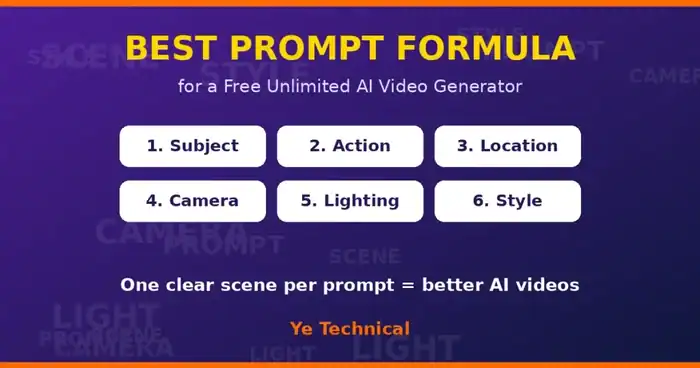
Here are two examples you can copy and change.
- A young creator recording a video at a small desk, soft warm lamp light, slow push-in camera, cinematic style, shallow depth of field.
- Aerial drone shot of green backwaters at sunrise, mist over the water, slow forward movement, realistic, natural colors.
Notice that each prompt describes only one scene. That is the key. Short and clear prompts almost always beat long and messy ones. Also, generate four variations and pick the best one instead of settling for the first result.
Who Should Use a Free Unlimited AI Video Generator?
This kind of tool is useful for many people. For example:
- YouTube creators who need b-roll, intros, or Shorts
- Instagram Reel creators who want quick visual hooks
- Faceless channel owners who do not want to shoot footage
- Teachers and educators who need visuals for lessons
- Small business owners who make product or promo clips
- Beginners who want to learn AI video without paying
Creator Workflow: Combine a Free AI Video Generator with Other Tools
The real power comes from using these tools together. Here is a simple workflow you can try.
- Use Image to Prompt on a visual you like, so you understand how the prompt is built.
- Generate a clean image with the Nano Banana image generator.
- Animate it with the Image to Video tool, or write a text prompt for the video generator.
- Generate four variations and pick the best clip.
- Edit the clip, add captions and a voiceover, and export it with CapCut Pro for Android.
This workflow saves hours. Also, it helps you build a consistent visual style, which makes your channel easier to recognize.
Tips to Get Better Results
- Write one scene per prompt.
- Always generate multiple variations and choose the best one.
- Add a voiceover and captions in your editor.
- Remember that clips are short. The site copy mentions 8-second clips, so combine two or three clips into one small story.
- Check every video for glitches in hands, faces, and text before posting.
- Follow platform rules. If your video looks realistic, disclose AI use where the platform asks for it.
- Do not post raw, repeated AI clips without adding your own value. Platforms may treat that as low-effort content.
If you want to grow with Reels, also read our Reels Growth PDF guide.
Free Unlimited AI Video Generator vs Paid Tools
Paid tools usually give you more control, longer clips, and support. However, they also cost money and limit your credits. A free unlimited AI video generator like VEOAIFree is better for testing ideas, learning prompts, and making short clips. On the other hand, if you run a client business, you may still want a paid plan for reliability. So the smart approach is to practice on the free tool first and upgrade only when your work needs it.
Try the Free Unlimited AI Video Generator
Ready to make your first clip? The tool runs directly in your browser, so there is nothing to install. Click the button below to open the free unlimited AI video generator.
Note: VEOAIFree is an independent third-party website and is not affiliated with Google. Features, limits, and availability can change, so please check the website for the latest details. Use AI video responsibly and follow copyright and platform rules.
You can also learn more about the official Veo model on the Google DeepMind Veo page.
Frequently Asked Questions
Is this free unlimited AI video generator really free?
According to the website, yes. It says you can create videos without limits or payment. However, the site also shows a premium option and a login button, so terms can change. Always read the current details on the site.
Do I need an account to generate videos?
The homepage says no sign-up is needed for the main generator. The site does have a login button, so some features may work differently.
Are the videos watermark-free?
The platform says its videos have no watermark. Still, check your first download to confirm this before you use it in a project.
Can I use the videos on YouTube and Instagram?
The site says the videos can be used on YouTube and social media. Still, check the site’s terms, follow each platform’s rules, and add your own creative value.
Which aspect ratio should I choose for Shorts and Reels?
Choose portrait (9:16) for Shorts, Reels, and TikTok. Choose landscape (16:9) for normal YouTube videos.
What other free tools does VEOAIFree offer?
Besides video, the menu lists image generators, an image-to-prompt tool, a video transcriber, upscaling and photo restoration tools, and several chat pages. See the section on more free AI tools above for details.
Is there a paid plan for this free AI video generator?
Yes. The website has an Upgrade to Premium page with paid plans. Pricing and limits can change, and the page describes generation limits in more than one way. So read the plan details carefully before you pay.
Final Thoughts
Creators do not fail because AI video is too hard. They fail because of weak prompts, wrong settings, and unrealistic expectations. A free unlimited AI video generator like VEOAIFree removes the cost barrier, so you can practice as much as you want. Use the fixes and the prompt formula from this guide, edit your clips properly, and post consistently.
So open the tool, create your first clip today, and tell us in the comments which prompt worked best for you.