
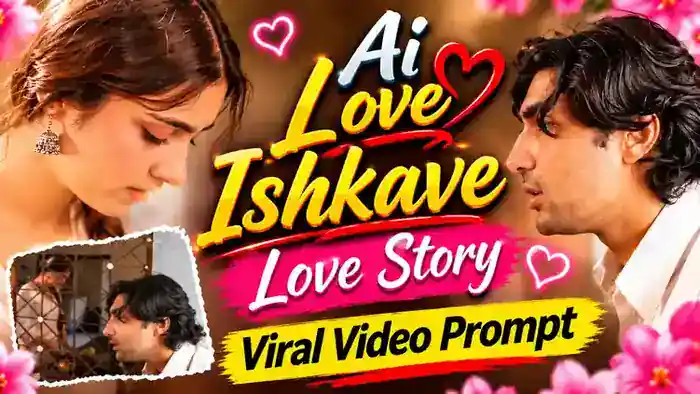
The AI Love Story Video trend is one of the cutest and funniest new reels on Instagram right now. In the original clip, a shy boy stands outside a kitchen window with an old iron grill and calls out for “uncle”. The girl inside keeps cutting vegetables and says he is not home. Then the boy tries to start a conversation and asks if she is making tea. Without even looking up, she replies, “Zeher bana rahi hoon” (I am making poison). His awkward face at the end is what makes everyone laugh.
Now creators are making the same love story with their own faces using AI. In this post, you get the free prompt, the muted reference video and simple steps to make your own version in Google Flow. You only need two clear photos: one of the boy and one of the girl.
Watch the AI Love Story Video
First, watch the original video below, so you know exactly what your AI video will look like.
Next, download the muted reference video from the button below. You will upload this muted file in Google Flow.
Why the AI Love Story Video Trend Is Going Viral
This trend works because almost everyone knows this situation. A boy finds an excuse to talk to the girl next door, and she shuts him down with one cold line. The story is short, the punchline is clear, and the ending reaction is pure comedy.
Moreover, it is a two-person video, so people make it with their partner, best friend or crush and tag each other. That brings more comments, shares and saves, and the Instagram algorithm pushes such reels to more people. So if you post your own AI Love Story Video now, while the trend is still fresh, you have a good chance of getting high views too.
AI Love Story Video Prompt
Before You Paste This Prompt, Check These 4 Things
- Muted video: Upload the muted reference video from the folder above. A video with sound can fail in Google Flow.
- Two clear photos: A clear photo of the boy and a clear photo of the girl. Faces must be fully visible and not blurry.
- Correct order: Upload the boy’s photo first (@image1) and the girl’s photo second (@image2), because the prompt replaces them in that order.
- Landscape size: Select 16:9 in Google Flow. The reference video is landscape, so 9:16 cuts the frame.
Replace the boy with @image1 and the girl with @image2. Preserve each image reference’s complete character design: face, hair, body proportions, colors, clothing, and distinctive details. Reproduce the video’s expressions and emotions naturally while keeping both characters recognizable and consistent throughout.
The boy appears in several shots, including the very first wide side-angle shot where he leans at the window grill. In EVERY shot, from the first frame to the last, the boy is @image1 — never the original boy from @video1, not even for one frame. The girl is @image2 in every shot.
Keep the original environment, lighting, duration, and shot order. Change only the characters’ appearance.
DIALOGUE (soft, natural Hindi, matched to the reference timing):
Boy (@image1), calling through the window: “अंकल…”
Girl (@image2), looking down while cutting: “नहीं हैं… शाम तक आएंगे… बाज़ार गए हैं।”
Boy, with a shy smile: “चाय बना रही हो?”
Girl, flat and deadpan, not looking up: “ज़हर बना रही हूँ।”
Last shot: after her line, the boy’s smile disappears, he looks awkward and embarrassed, glances down and goes quiet. He does not smile at the end.
Each line is spoken only by its own character; the other keeps the mouth closed. No overlapping voices. Only quiet kitchen sounds besides the dialogue, no background music.
NEGATIVES: original actors’ faces, identity swaps, mixed character features, appearance drift, altered actions, extra characters, distorted faces, extra limbs, flickering, new scenes, subtitles, text, watermarks.
How to Make the AI Love Story Video in Google Flow
- First, download the muted reference video from the button above.
- Next, open Google Flow with the Generate Video button and select Video, then the Ingredients mode.
- After that, upload the muted video. Then upload the boy’s photo and the girl’s photo, in that order.
- Now copy the prompt above and paste it into Google Flow. Make sure @video1 is the reference video, @image1 is the boy and @image2 is the girl. If a tag does not link, type @ and select the right file.
- Then select the 16:9 aspect ratio and click Generate.
- Finally, download the video and post it on Instagram. The dialogue comes from the prompt itself, so you do not need to add any extra audio.
Tips for a Better Result
- Use front-facing photos with good light. A blurry or side-angle photo can change the face in some shots.
- Check the first shot carefully. If the original boy still appears there, generate again with the same prompt.
- Simple clothes work best. A plain kurta or shirt for the boy and a simple suit or top for the girl match the old house look.
- If you want captions, add them later in CapCut or VN with auto captions. Do not ask Google Flow to write text, because AI text often comes out broken.
Frequently Asked Questions
Is the AI Love Story Video prompt free?
Yes. The prompt and the reference video are free. Google Flow also gives free credits, so you can make the video without paying.
Can I make this video with only one photo?
This prompt is made for two people, so upload both photos. If you upload only one, Google Flow may keep the original actor’s face for the other character.
Why should I upload the muted video?
A reference video with sound can give a speech error in Google Flow. The muted file avoids that, and the prompt adds the Hindi dialogue on its own.
Which aspect ratio should I use?
Use 16:9. The reference video is landscape, so a vertical 9:16 video cuts off parts of the scene.
That is all for the AI Love Story Video. For more trending AI edits, also check the CID ACP Viral Video and the Couple Walk AI Video.