
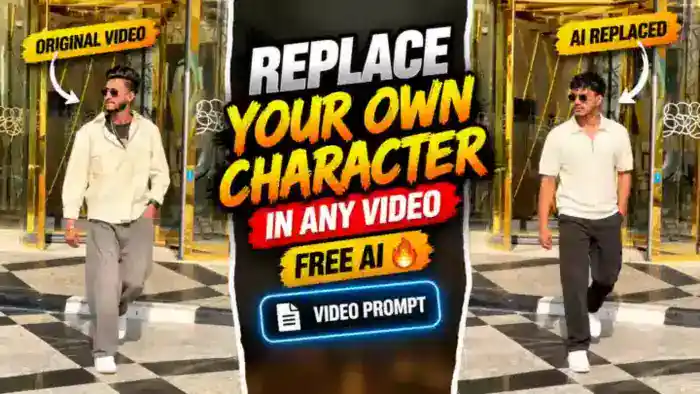
Want to replace character in video clips and put yourself into any viral reel? With Google Flow, you can now swap the person in any video with your own face, hairstyle and outfit, while the walk, the camera movement and the timing stay exactly the same. In this guide, you get the full step-by-step tutorial, the free prompt and the reference video files.
Why This Replace Character in Video Trend Is Going Viral
First, it works with almost any video, such as a stylish walk, a dance or a cinematic entry. Next, the result looks like you actually shot the video yourself, so your followers get surprised. Finally, it is completely free with Google Flow, which is why creators are posting these reels every day and getting millions of views.
Watch the Reference Video
This is the original video used in this tutorial. Your character will copy the same walk, camera movement and timing:
Download the muted reference video and the original music from the folder below:
What You Need to Replace Character in Video
- Your photo – a clear, front-facing photo with your face fully visible.
- ChatGPT – to turn your photo into a character sheet.
- A muted video – any video in which you want to replace the person (or use our reference video).
- Google Flow – free AI video tool from Google.
- CapCut or VN – to add music at the end.
Step 1: Make Your Character Sheet in ChatGPT
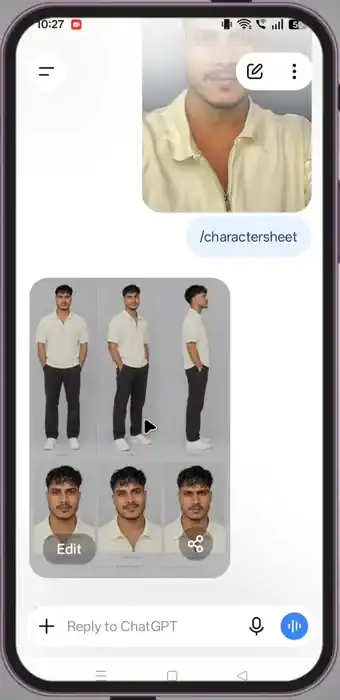
First, open ChatGPT and upload your photo. Then type /charactersheet in the message box and send it. ChatGPT will create a character sheet of you, showing your face and full body from different angles, just like in the example below. Download this image, because Google Flow uses it to keep your face and outfit the same in every frame.
Step 2: Download and Mute the Video
Next, download the video in which you want to replace the character. The file must be muted (no sound at all). If the video has sound, Google Flow often shows the “unable to generate speech” error. Our reference video in the download folder is already muted, so you can use it directly.
Step 3: Replace Character in Video with Google Flow
- Open Google Flow and start a new project.
- Choose Ingredients mode and select the Omni Flash model.
- Select the aspect ratio that matches your video – 9:16 for Instagram Reels and Shorts.
- Upload the muted video and your character sheet.
- Copy the prompt below and paste it into the prompt box.
- Finally, click Generate. Your character replaces the person in the original video with the same movement.
Before You Paste This Prompt, Check These 4 Things
- Muted video: the reference video must have no sound, otherwise Google Flow shows an “unable to generate speech” error.
- Character sheet: upload the character sheet made in ChatGPT, not a blurry selfie.
- Right settings: Ingredients mode, Omni Flash model and the same aspect ratio as your video (9:16 for reels).
- Add sound later: the generated video is silent, so add music in CapCut or VN after downloading.
Replace Character in Video Prompt (Copy and Paste)
Copy this full prompt. It tells Google Flow to take the movement and camera from the video and the face, hair and outfit from your character sheet.
CORE INSTRUCTION
Recreate the video using the person/character from the target image, while accurately transferring the movement and camera behavior from the reference video.
The target image must remain the source of truth for the character’s appearance.
CHARACTER PRESERVATION — ABSOLUTE PRIORITY
Keep the character from the target image exactly consistent throughout the entire video:
– Same face
– Same facial structure and proportions
– Same eyes, eyebrows, nose, lips and jawline
– Same skin tone and realistic skin texture
– Same hairstyle
– Same hair length, shape, texture and hairline
– Same body shape and proportions
– Same clothing
– Same clothing color, fabric, design and details
– Same accessories
– Same overall identity and appearance
Do NOT redesign, beautify, replace, modify, age, de-age or reinterpret the person.
Do not change the outfit or hairstyle even when the body moves.
MOTION TRANSFER
Analyze the reference video frame-by-frame and reproduce its movement as accurately as possible:
– Head movement
– Facial expressions
– Eye direction and gaze
– Eyebrow movement
– Mouth movement
– Blinking
– Neck movement
– Shoulder movement
– Arm and hand movement
– Upper-body movement
– Walking or body movement
– Body posture
– Natural weight shifting
– Timing and rhythm of movements
– Start and end positions of movements
The target character should perform the same actions and movements as the person in the reference video, while remaining visually identical to the target image.
CAMERA MOTION TRANSFER
Copy the camera behavior from the reference video:
– Camera position
– Camera angle
– Camera distance
– Camera height
– Camera movement
– Handheld movement
– Camera shake
– Push-in / pull-out
– Pan / tilt
– Tracking movement
– Framing
– Subject positioning
– Perspective changes
– Movement speed
Do not introduce new camera movements that are not present in the reference video.
FACIAL PERFORMANCE
Transfer the facial performance naturally and accurately.
Match the reference video’s:
– Expression intensity
– Smile or neutral expression
– Eye movement
– Eyebrow movement
– Head tilt
– Lip movement
– Emotional timing
However, never alter the target person’s facial identity.
The face must remain recognizable as the exact same person from the target image in every frame.
REALISM
Create highly realistic motion with natural human biomechanics.
Avoid:
– Face morphing
– Identity drift
– Facial distortion
– Melting features
– Unnatural eye movement
– Extra fingers
– Missing fingers
– Deformed hands
– Body warping
– Clothing changes
– Hair changes
– Artificial facial expressions
– Rubber-like movement
– Flickering
– Frame-to-frame inconsistency
Hands, arms, face, hair and clothing must remain anatomically and visually consistent throughout the video.
TEMPORAL CONSISTENCY
Maintain strong frame-to-frame consistency.
The character’s:
– Face
– Hair
– Body
– Clothing
– Accessories
– Skin texture
must remain stable throughout the entire sequence.
No random changes between frames.
COMPOSITION
Maintain the same composition and subject framing as the reference video wherever possible.
If the reference person moves closer or farther from the camera, reproduce the same relative movement with the target character.
OUTPUT
Aspect ratio: 9:16 vertical
Create a cinematic but natural-looking vertical video suitable for TikTok, Instagram Reels and YouTube Shorts.
The final result should look like the exact person from the target image naturally performing the exact movement and camera performance from the reference video.
PRIORITY ORDER
When there is any conflict, follow this priority:
1. Target image identity and appearance
2. Reference video motion and performance
3. Reference video camera movement
4. Natural physics and realism
5. Visual style
Step 4: Add Music in CapCut or VN
The video from Google Flow is silent. So, open it in CapCut or VN and add any music you like. If you want the same vibe as the original reel, use the original music file from our download folder above. After that, export the video and post it as a reel.
My Replace Character in Video Result
Here is my own result made with this exact method and prompt. As you can see, my face, hairstyle and outfit come from my character sheet, while the walk and the camera movement match the original video.
Tips for a Better Result
- Use a reference video with one person only, so the AI knows whom to replace.
- Choose videos where the person is clearly visible – very dark or blurry clips give weaker results.
- Wear an outfit in your photo that suits the video, because the outfit is copied from your character sheet.
- If the face does not match, generate again – the second or third try is often better.
Frequently Asked Questions
Can I replace character in video for free?
Yes. Google Flow gives free credits to new users, and ChatGPT can make the character sheet for free, so you can try this without paying.
Why do I get the “unable to generate speech” error?
This error comes when the uploaded video has sound. Mute the video before uploading it to Google Flow, then add music later in CapCut or VN.
Can I use any video?
Yes. You can use any short video, but it works best when there is only one clearly visible person in the frame.
Which aspect ratio should I select?
Select the same aspect ratio as your video. For Instagram Reels and YouTube Shorts, choose 9:16 vertical.
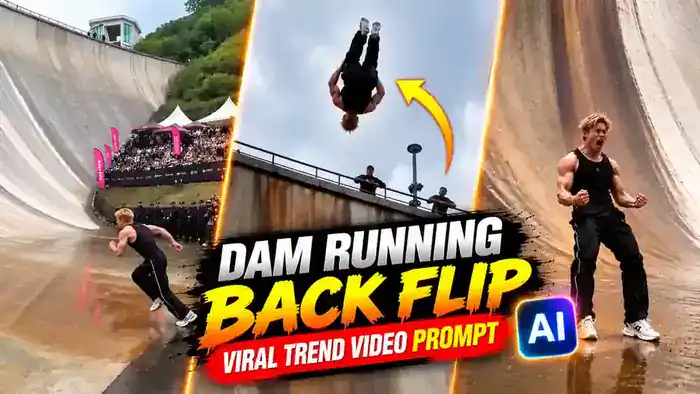
Want more ideas? Try our Dam Running Backflip prompt and the Cash Flex Trend prompt. Now pick any viral video, replace character in video with your own look and post your reel today.